
My Apple Smart Home Is So Much Better With Home Assistant Running the Show
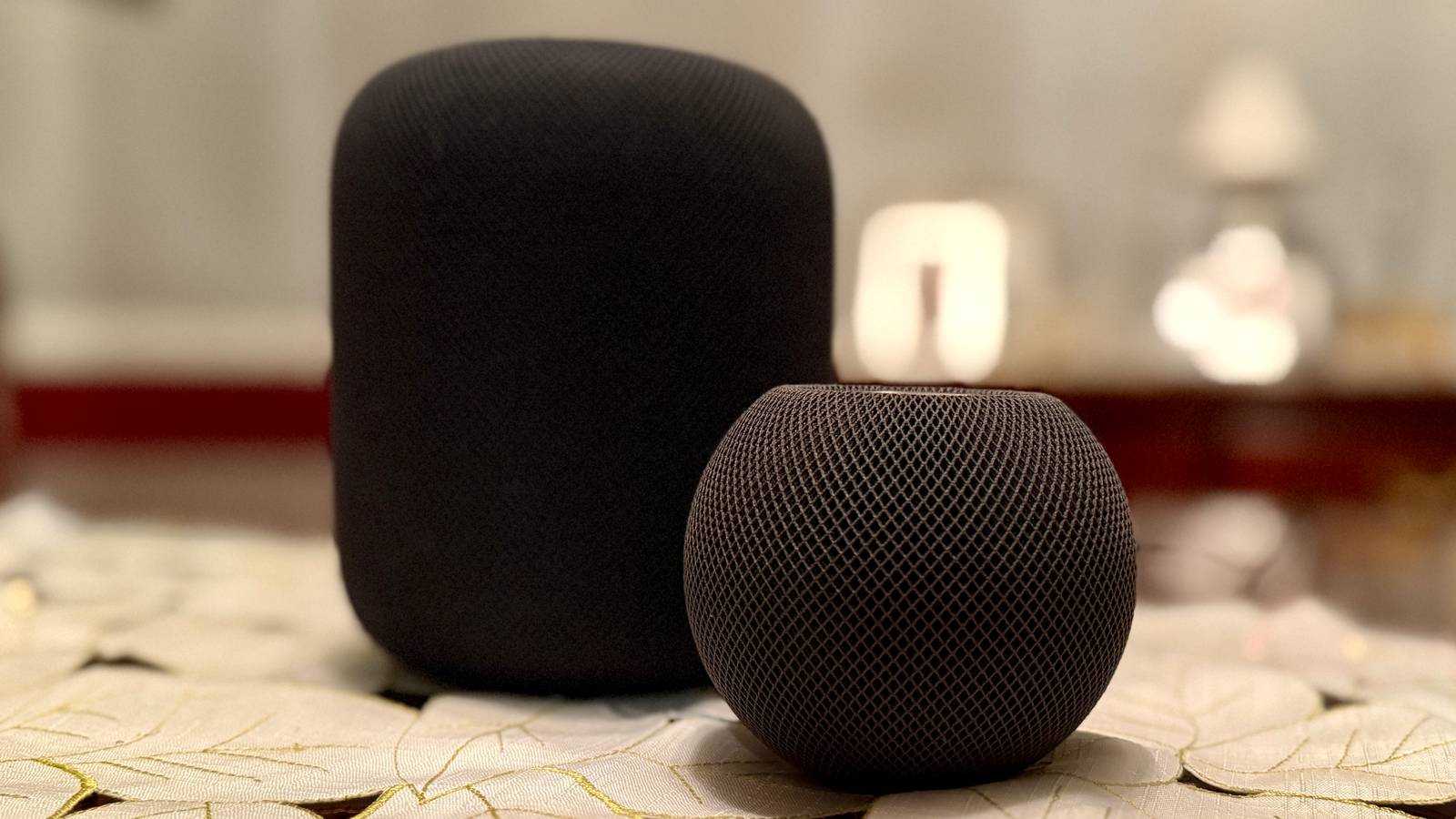
Home Assistant and Apple Home appeal to two different smart home owners. The former is seen as complex with endless possibilities, the latter a closed ecosystem that’s incredibly easy to use. But did you know you can get the best of both worlds?
You don’t need to choose between them, you can have both. Apple Home might even be the thing that your Home Assistant setup is missing.
The Difference Between Home Assistant and Apple Home
Before we get into the benefits of integrating both systems into your smart home setup, let’s take a look at what they’re capable of, how they differ, and the roles they play in a smart home.
Home Assistant is an open-source smart home platform. It’s a local server-based solution that runs on almost anything. It doesn’t need access to the internet, which means that (most) communication between the server and your smart home devices (like plugs and lights) takes place locally.
The beauty of Home Assistant is that it’s a truly open platform. Not only is the source code available for anyone to see and contribute to, but the ethos of the project also fosters interoperability. This works via integrations, which bring thousands of different devices and services together under one smart home system. Home Assistant is the glue that lets them talk to one another.

Home Assistant requires dedicated hardware like a single-board computer or even an old laptop that you leave running all the time. The Home Assistant platform is Linux-based, which means you’ll either need to install the operating system directly, run the platform within a virtual machine, or use a Linux container system like Docker.
If this sounds a bit intimidating, don’t worry. There are relatively straightforward installation instructions for all compatible platforms. You can even buy a Home Assistant Green ready-to-go server, plug it in, and you’re off to the races. You’ll also want to add a Zigbee or Matter (Thread) radio or a competing technology like Z-Wave so that you can communicate with your chosen smart home devices.
-
- Dimensions (exterior)
-
4.41″L x 4.41″W x 1.26″H
- Weight
-
12 Ounces
Home Assistant Green is a pre-built hub directly from the Home Assistant team. It’s a plug-and-play solution that comes with everything you need to set up Home Assistant in your home without needing to install the software yourself.
-
- Dimensions (exterior)
-
38.5 x 18 x 4,5mm
- Weight
-
4g
Add Zigbee or Thread compatibility to your Home Assistant server using the ZBT-1, previously known as the SkyConnect. While multi-protocol support has been tested, the dongle has proven to be most reliable when running one or the other (so you can always buy two to add both).
Apple Home, on the other hand, is Apple’s own closed smart home system. It works with devices designed specifically to support Apple Home, including Matter devices. For Apple Home, all you need is a home hub device like a HomePod or Apple TV 4K (fourth-generation) and some Apple gadgetry.
- Connectivity
-
Bluetooth, Wi-Fi
- Voice Assistant
-
Siri
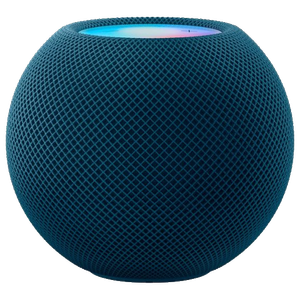
The Apple HomePod Mini is a Siri-enabled smart speaker for those invested in the HomeKit ecosystem. Compact and discreet, the HomePod Mini is available in five different colors, too.
Opening the Home app on your iPhone, iPad, or Mac will guide you through just about every part of setting up and managing your smart home. Apple Home is also designed with offline use in mind, so things should still work if your internet connection dies, unless you’re trying to do things remotely.
Both platforms support scenes and automations, but Home Assistant enables far more complex workflows to be created. You can integrate a vast range of external services into Home Assistant, and the sky is the limit in terms of what you do with them.

Though both platforms can operate similarly in spite of their differences, what really matters within the context of using both simultaneously is how they interact.
Home Assistant Makes Almost Anything Work with Apple Home
In a shared Home Assistant and Apple Home setup, Home Assistant is the backbone of the network. This is because the platform can be used to expose virtually any device to Apple Home. This is all possible using the HomeKit Bridge integration.
Within a strict Apple Home smart home, devices must either be specifically HomeKit-compatible or they must support the Matter standard. This can greatly limit your choices when shopping for smart home devices. Generally speaking, Apple Home-compliant devices are more expensive than Google and Alexa counterparts, and there are fewer on the market.
With Home Assistant, you can circumvent this limitation and it’s trivially easy to do. Simply add a device as you normally would to Home Assistant, then configure HomeKit Bridge and decide what devices you want to expose. You can choose two modes: one where everything is included by default and you nominate items to exclude, and the opposite, where you instead select what you want to see in your Home app.

Personally, I’m going with the latter. I don’t need every single device and sensor showing in Apple Home, especially when it comes to weirdo third-party things that I’m messing with. It only takes a second to head back to HomeKit Bridge and reconfigure the link when you want to add or remove something.
There are a few caveats to this. First, you’ll still need what Apple deems a “home hub” device to have an Apple Home setup. The cheapest option here is a HomePod mini, but recent Apple TVs do the trick, too. I’m using a launch model HomePod for this (the one that Apple cancelled), and it’s still getting updates and soldiering on.
The second thing to know is that HomeKit Bridge won’t mirror your Home Assistant setup like a carbon copy. Though your devices will be exposed in the Home app, you’ll still need to create rooms, assign devices to those rooms, and build scenes that you want to trigger from within the Home app on your devices. You’ll also need to add any household members to your Apple Home, as you would normally.

Apple Home Can Control Home Assistant
At this stage, you might be wondering why it’s worth potentially buying a HomePod and doing all the legwork to set things up when Home Assistant does a perfectly good job already. That’s a fair point. If you’re totally satisfied with the way Home Assistant already works, more power to you.
As much as I love Home Assistant, Apple Home scores a win from a usability standpoint. Interacting with my smart home from within the Home app on my iPhone or by barking instructions at Siri beats opening the Home Assistant app or using Home Assistant’s relatively disappointing voice assistant features.

With the two systems working in tandem, you can use Apple Home essentially as an interface for Home Assistant. When I turn off a light in Apple Home, the change is reflected in Home Assistant too. I’ve got all my important switches and sensors visible in both, and I’ve even gone as far as replicating the same scenes, so I can say things like “Siri, relax” and everything just works.
But it’s not just me who’s happy with this system. My partner is fully on board with my smart home habit, but has little to no interest in the nitty-gritty of setting it up. They never have to see the Home Assistant dashboard or worry about having the app on their iPhone in order to interact with it.
Apple has also done a great job of building some useful features into Home. After exposing an IKEA Badring water leak moisture sensor via HomeKit Bridge, I tested the feature and received critical alerts on every relevant device, including two iPhones and an Apple Watch. Another neat feature that I’m impressed by is the location approximation, so I can tell Siri to “turn on the lights,” and the right lights come on consistently.

I’m on record as a bit of a Siri hater, but so far I’ve got nothing to complain about. Voice control is a bit of a pain point for Home Assistant users, but thanks to running both Home Assistant and Apple Home, I don’t have that problem.
Apple Home Works Remotely Too
Home Assistant is a strictly offline smart home platform until you decide to open it up to the internet. There are a few ways of going about this, with the easiest being just paying Nabu Casa $6.50 per month. This gives you foolproof remote access, plus you get to feel warm and fuzzy about supporting the Home Assistant project (plus access to better text-to-speech APIs).

Another option would be to open a port on your router specifically for Home Assistant, and then use a dynamic DNS solution to map your (non-static) IP address to a URL to facilitate access. There are some security concerns in doing this, and then there’s the hassle of setting it all up. Lastly, you can use SSH or a VPN to access your server, but this isn’t entirely user-friendly.
I’m going with the other option, which is to use Apple Home as a remote bridge to my Home Assistant setup. Since Apple already makes it trivially easy to access your smart home setup outside of the house, having a home hub setup gives you instant access to your exposed devices. You can read sensors, turn on lights and switches, adjust cooling or heating, and even view cameras if you’ve set them up.
If an Apple Home appeals to you, there’s a good chance you’re paying for iCloud+ to back up your devices and store media. In that case, you also get access to HomeKit Secure Video, Apple’s cloud video service. By using a service like Scrypted with Home Assistant, you can pass video on to iCloud and view it in the Home app even if the camera isn’t HomeKit certified.

This effectively gives you remote access to your home and cameras, with free cloud storage (since HomeKit Secure Video doesn’t count towards your iCloud storage space).
If you have a house full of iPhones and iPads, picking Apple Home is a logical choice. But you can go one better by using Home Assistant in the background, while taking advantage of Apple’s polished smart home interface and deep integration with Siri and similar services.
If I didn’t already have a HomePod that could do this, I’d go out and buy one. That’s how bowled over I am by how well these two platforms interact.
link

:max_bytes(150000):strip_icc()/GettyImages-1220602415-869d569919b24829b21868f530a8207f.jpg "The 1980s Trend Designers Hope Never Comes Back")