
Opera GX just made your smart home even smarter thanks to MQTT and Home Assistant
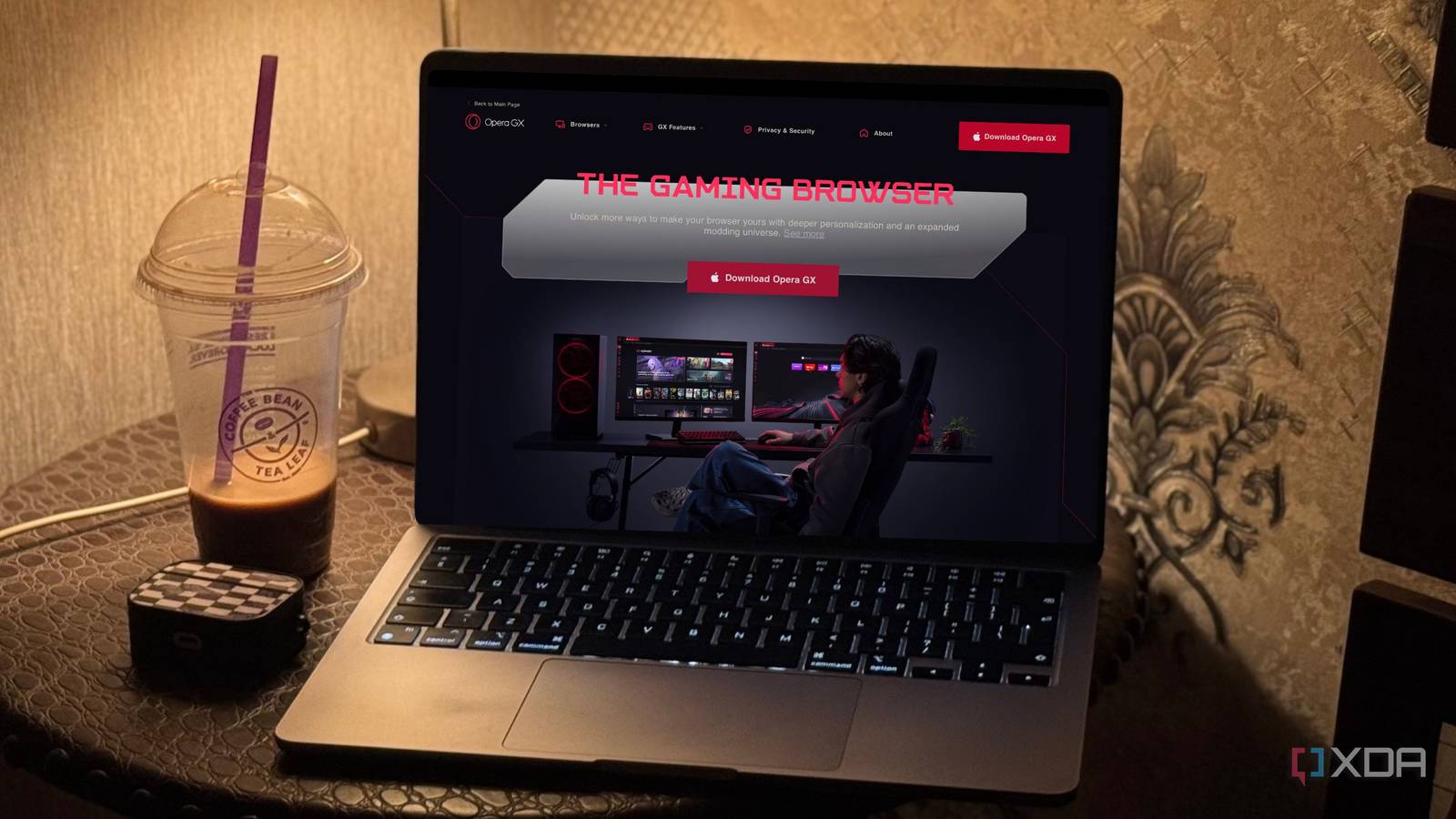
Smart homes aren’t just composed of hardware; they’re composed of software, too. In fact, some of my most powerful automations are built using just software. If you’re an Opera GX user, then you have a new option, too: it’s just been updated to add a new “Smart Home” integration, allowing the browser to both listen to and publish MQTT messages.
Better yet, the company has entirely open-sourced the new MQTT extension API and published a reference extension that integrates with popular hubs like Home Assistant, Homebridge, and Node-RED. The result is a two-way bridge: events in your room can control the browser, and actions in the browser can drive real-world automations.
Opera GX’s MQTT integration is genuinely unique
There isn’t really anything else that can do it
Linking your PC to your smart home isn’t exactly a new concept, but it required the usage of system agents like HASS Agent, generalized scripts, or web pages that could speak MQTT over a WebSocket. By baking MQTT into the browser’s extension platform itself, Opera GX turns everyday browsing contexts into signals that can be used for automations. There are already a ton of Home Assistant examples given on the official GitHub (which also has instructions for installing the extension), and they show how easy it is to get set up and running.
These are the currently supported sensors:
- Accent color: Reflects the current color in RGB format, like #ff123a
- Battery level: Reflects the current battery level in percentage
- Number of tabs: The number of open tabs in all windows and workspaces
- Remaining RAM: The amount of free memory in gigabytes
- Playing movie: A binary sensor flipped to “on” when a tab contains a video streaming address
- Conference: A binary sensor flipped to “on” when a tab contains an online meeting address
And these are the commands, switches, and triggers:
-
Commands
- Open a new tab
- Close current tab
- Close private windows
- Switches
-
Triggers
- Closed a tab
- Opened a tab
Through a combination of all of these, your browser can be used to trigger automations, or automations can be used to control your browser. Sure, there are some privacy-centric “panic” workflows you can set up, but there’s also the ability to configure scene-based lighting and distraction-free work modes tied directly to how you’re using your browser.
A smart home controller in your browser
All kinds of automations are possible

So with that combination of sensors, switches, triggers, and commands, what can you do with this? Well, unlike options such as HASS.Agent, you get direct browser control rather than overall system control. That has some upsides and downsides, but in a browser context, there’s a lot of upside.
For example, you could pair a door sensor with Opera GX’s Panic Button to hide your session the moment someone walks in, according to the official documentation. Lighting could also be automated to mirror your GX theme for an ambient color synchronization, or a “movie night” automation can be triggered, which dims your lights, pauses music, and lowers your blinds.
Power users can go further than that, too. Entering a meeting could trigger a “busy” state that lights a red “do not disturb” lamp, or even coordinating laptop charging via a smart plug for battery health. Basically, think of anything Home Assistant is linked to, and you can just use your browser’s signals to tell your home what to do.
This all works through the Home Assistant MQTT Discovery protocol, which is implemented in the extension. It reports to a designated MQTT topic with those entities grouped into one device called Opera GX. You can make your own sensors and triggers, too, so you’re not just limited to what Opera has built into this extension.
How to enable Opera’s Smart Home features
Just install the extension

If you want to try it out, Opera’s Smart Home features support any smart home platform that can utilize MQTT, and it’s really easy to get started. Simply open the settings, navigate to the Smart Home section, turn on MQTT, and enter your address, port, and credentials if required. Hitting apply should then update the state below it to say Connected.
However, despite being Chromium-based, this extension is not portable to other browsers, nor can you fork the official extension and release an updated or changed version on the Opera add-ons store. As the company says, it uses a private API that’s only available in Opera GX to implement some of its features, and some of the APIs used by the extension will apparently not work with a different key designated in the manifest.
With that said, you can still modify the extension or build your own using the MQTT API. That API was introduced in Opera GX 119.0.5497.163, launched back in July. You’ll need to load an unpacked extension to get it up and running, but once you do, you can report all of your own data that you specifically want to collect and use it in your own automations.
If you want to get started, you can install the official Smart Home extension in Opera GX and link it up to Home Assistant right away!
link

:max_bytes(150000):strip_icc()/GettyImages-1220602415-869d569919b24829b21868f530a8207f.jpg "The 1980s Trend Designers Hope Never Comes Back")